

Download PDF Text Extractor – Free, Secure PDF Snippet Tool for Windows, macOS & Linux
Overview
PDF Text Extractor is a lightweight, free utility designed to pull selected snippets of text from any standard PDF document without the need for a full conversion. Whether you’re a researcher needing a quick quote, a marketer gathering key points for a presentation, or a student looking to copy a paragraph for notes, this tool simplifies the process. The application focuses on speed, security, and ease‑of‑use, allowing you to isolate exactly the text you need while preserving the original formatting as closely as possible.
Unlike bulky PDF editors that require costly licenses, PDF Text Extractor offers a straightforward, no‑frills interface that works on Windows, macOS, and popular Linux distributions. Its small installation footprint (under 20 MB) makes it ideal for both desktop and portable use, and the software receives regular updates to stay compatible with the latest PDF standards. By extracting only the required text, you reduce the risk of unintentionally sharing confidential information that may be hidden elsewhere in the document.
The tool also supports batch extraction, enabling users to process multiple PDFs in one go, which can be a major time‑saver for large projects.
Key Features
- Selective text extraction – highlight any paragraph, line, or word and copy it instantly.
- Batch processing – extract snippets from multiple PDFs simultaneously.
- Preserves original formatting, including line breaks, superscripts, and special characters.
- Supports encrypted PDFs (with user‑provided password) while keeping your data secure.
- Cross‑platform compatibility: native installers for Windows 10/11, macOS 10.15+, and major Linux distros.
- Portable version – run the app from a USB stick without installation.
- Automatic updates – the built‑in updater checks for the latest version and applies patches securely.
- Zero‑ads, zero‑tracking – the free version contains no hidden telemetry or advertisements.
- Export options – copy to clipboard, save as .txt, or export directly to Microsoft Word.
- Lightweight UI – a clean, single‑window design that minimizes learning curve.
Installation & Usage Instructions
Step‑by‑Step Installation
1. Download the installer from the official website. Choose the version that matches your operating system – Windows (.exe), macOS (.dmg), or Linux (.deb/.rpm).
2.
Run the installer. On Windows, double‑click the .exe file and follow the wizard. On macOS, drag the app to your Applications folder.
Linux users can install via the package manager (e.g., sudo dpkg -i pdf‑text‑extractor.deb or sudo rpm -i pdf‑text‑extractor.rpm).
3. Launch the application. The first run may prompt you to allow access to your Documents folder – this is required for the app to open PDF files.
4.
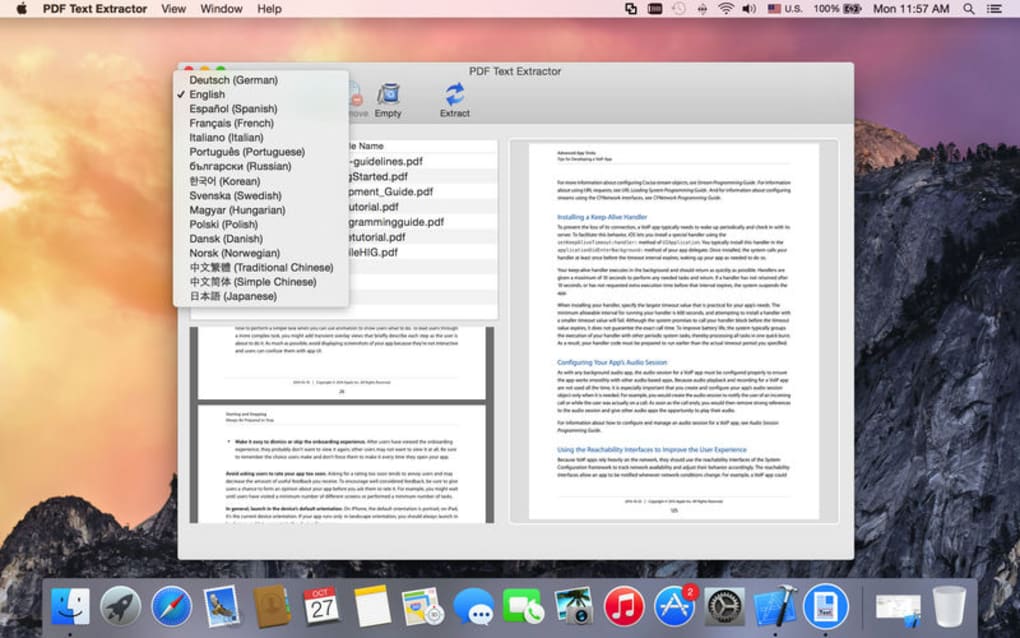
Configure preferences (optional). In Settings you can set the default export format, enable auto‑update checks, and choose a language for the UI.
How to Extract Text Efficiently
After launching PDF Text Extractor, click Open PDF and select the file you wish to work with. The document loads in a simple preview pane. Use your mouse to highlight the exact portion of text you need; the selection tool works similarly to any standard text editor.
Once highlighted, you have three immediate actions: Copy to Clipboard, Save as .txt, or Export to Word. For batch operations, click the Batch Mode button, add multiple PDFs to the queue, define a keyword or page range, and press Start Extraction. The software will generate a single consolidated text file containing all requested snippets, saving you countless manual copy‑pastes.
The built‑in “History” panel keeps track of recent extractions, making it easy to revisit previous work without reopening the original PDFs.
Compatibility, Pros & Cons
PDF Text Extractor runs natively on Windows 10/11 (64‑bit), macOS Catalina (10.15) and later, as well as Linux distributions that support .deb or .rpm packages, including Ubuntu, Fedora, and Debian. A portable version is also available for any OS that can execute a standard executable file.
Pros
- Free and completely ad‑free.
- Fast, precise extraction without converting the whole document.
- Cross‑platform support – one tool for Windows, macOS, and Linux.
- Batch processing saves time on large projects.
- Secure handling of encrypted PDFs.
- Lightweight UI that is easy for beginners.
Cons
- Does not support OCR for scanned PDFs – only works with selectable text.
- Advanced formatting (tables, images) is not retained.
- No built‑in cloud sync; files must be managed locally.
Frequently Asked Questions
Can PDF Text Extractor handle password‑protected PDFs?
Yes. When you open a protected PDF, the app prompts you for the password. Once entered, you can extract text just like any unprotected file, and the password is never stored.
Is there a limit to the number of files I can process in batch mode?
There is no hard limit, but performance may depend on your system’s RAM and CPU. Most users report smooth operation with up to 200 PDFs in a single batch.
Does the free version include any hidden fees or in‑app purchases?
No. PDF Text Extractor is completely free. All features described are available without any subscription or extra payment.
Can I extract text from scanned documents?
The current version does not include OCR capabilities, so it cannot extract text from image‑only PDFs. You would need a separate OCR tool before using PDF Text Extractor.
How often are updates released?
The development team releases minor updates every 4‑6 weeks and major releases roughly twice a year, ensuring compatibility with the latest PDF specifications and operating‑system changes.
Conclusion & Call to Action
PDF Text Extractor fills a niche that many larger PDF editors overlook: the ability to quickly pull out just the text you need without the overhead of converting entire documents. Its free price tag, cross‑platform availability, and secure handling of encrypted files make it a practical choice for students, professionals, and casual users alike. While it lacks OCR and advanced formatting preservation, its core functionality is robust, reliable, and regularly updated. If you often find yourself copying fragments of PDFs for research, reporting, or collaboration, this lightweight tool will streamline your workflow and keep your data safe.
Ready to simplify your PDF workflow? Download PDF Text Extractor now and start extracting text instantly—free, secure, and without any hidden charges.
Pros: Free, fast extraction, batch mode, cross‑platform.
Cons: No OCR, limited formatting retention.